How to edit skywire.co.uk
The site is built from Storyblok. Every page, article, case study, author and footer link is a story there. Publish a story and it is live in about a minute. Nothing needs rebuilding and nobody needs to be asked.
Everyone signs in with the shared Skywire account. The login is in 1Password under “Storyblok (Skywire Website)”. If you can't see that item, ask David Alexander.
Publishing
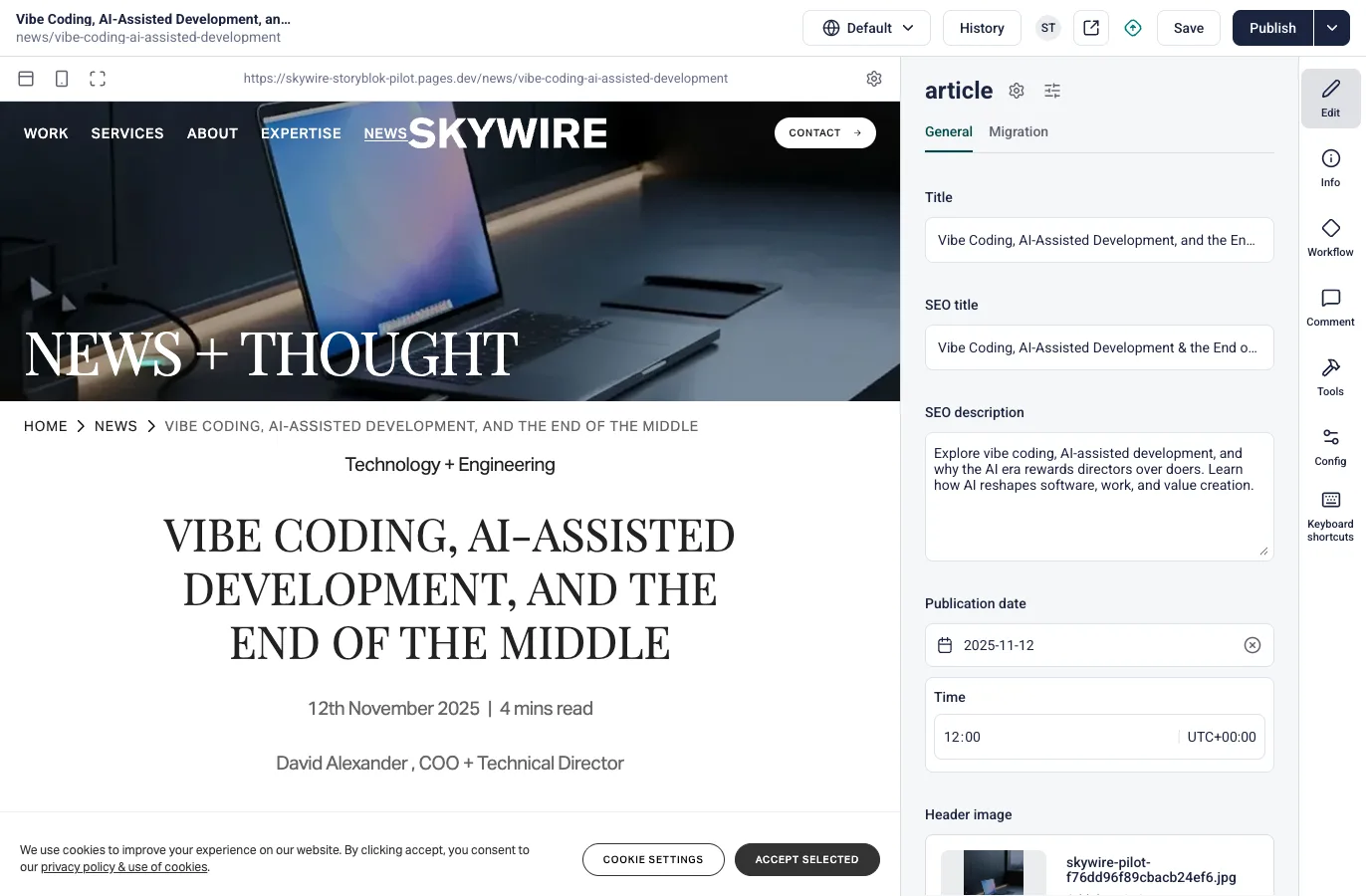
- Open the storyFind it in its folder under Content. The visual editor shows the page preview next to its fields.
- Edit and SaveSaving creates a draft. The preview updates, but the live site does not change.
- PublishPublishing, unpublishing or deleting a story updates the live site.
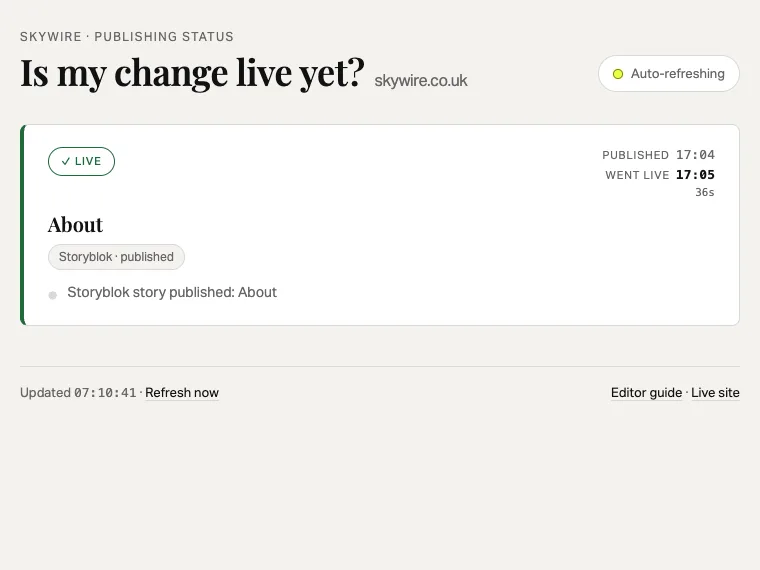
- Wait about a minuteThe site waits for 10 seconds of quiet (two minutes at most) so several quick edits go live together. Build status shows a publish while it is queued, then when it went live.
- Check liveOpen the page on skywire.co.uk. If a publish can't go live, the web team is emailed and the site stays as it was. Don't publish again and again.
Where content lives
| Folder | Content type | URL |
|---|---|---|
Root (slug homepage) | homepage | / |
| Root, expertise, services, partner-platform | Page | /about, /services/crm… |
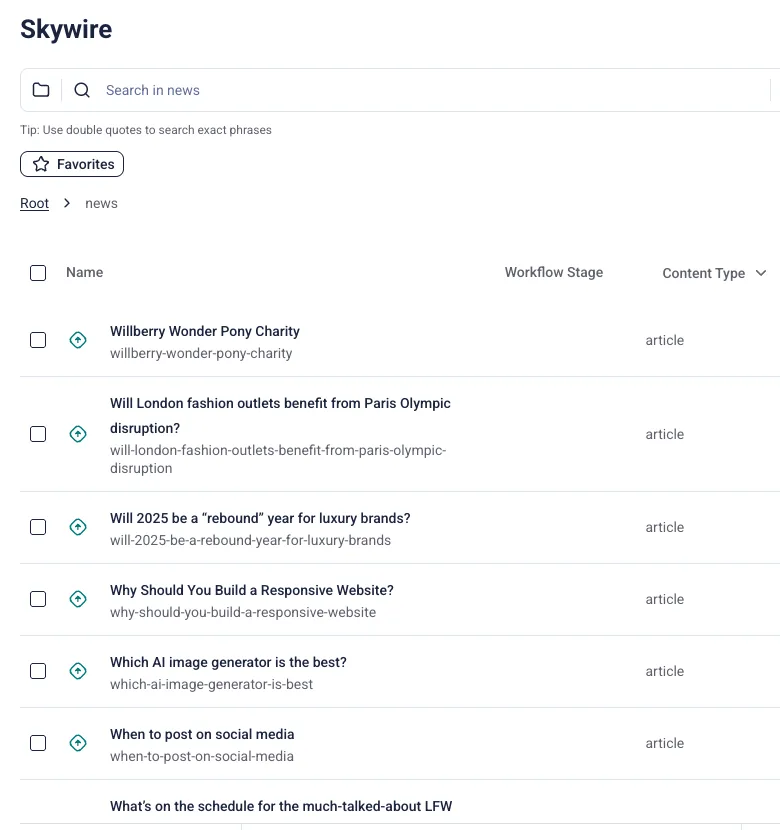
| news | article | /news/… |
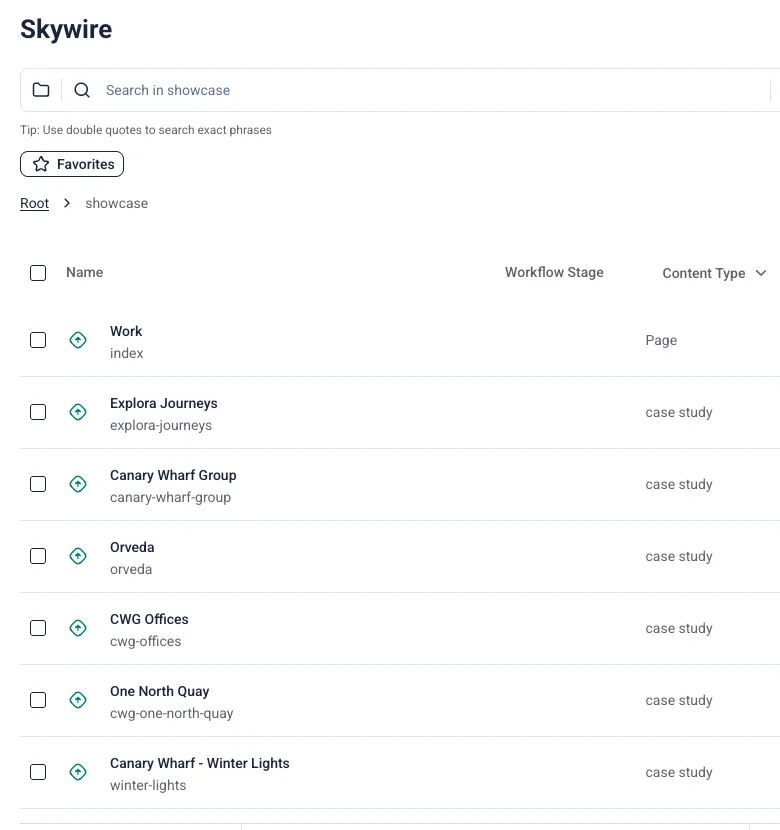
| showcase | case study | /showcase/… |
| service | service page | /service/… |
| events | event | /events/… |
| migration-authors | author reference | /author/<name> |
| migration-categories, -testimonials, -industries, -services | references | no page of their own |
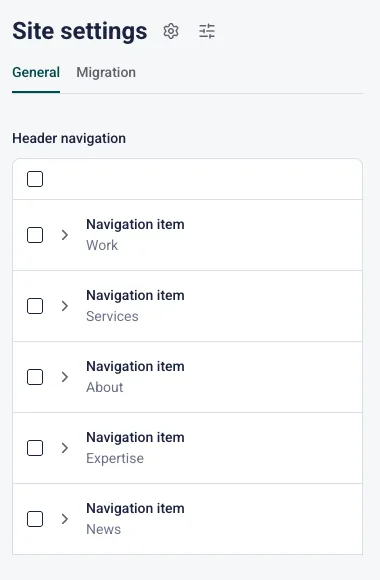
| Site settings | site settings | header nav, footer, contact form text, announcement bar |
A folder's index story is its landing page: events/index is /events. Each folder only offers its own story type, so Create new → Story picks the right one. The Archive (do not use) folder holds old copies. Ignore it.
Common tasks
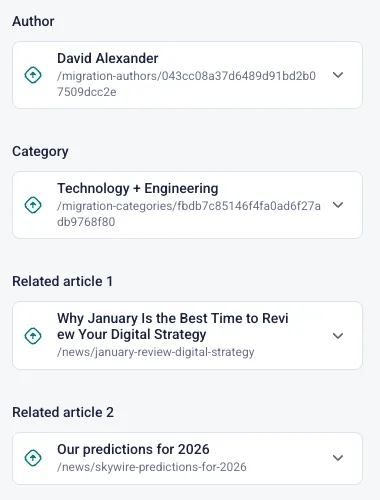
| New article | Open news → Create new → Story. Set the author, category, date, header image and thumbnail. Add sections. Publish. |
| New case study | Open showcase → Create new → Story. Drag it into position in the folder list to set its place on /showcase. |
| New author | Open migration-authors → Create new → Story. Publish it before the article. The /author page appears once the author has a published article. |
| Campaign landing page | A Page in the root. Turn on Landing page layout to hide the menu and footer, and Hide from search engines to keep it out of Google and the sitemap. |
| Service menu entry | On a service page, set Navigation label, Navigation order and Services section. |
| Header nav or footer link | Edit Site settings. |
| Announcement bar | In Site settings, add an Announcement bar block with a message and an optional label and link. It shows above the header on every page except landing pages. Visitors who close it won't see it again until the wording or link changes. Delete the block to remove the bar. |
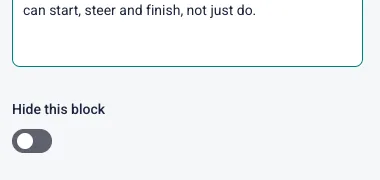
| Hide a section | Open the block and turn on Hide this block at the bottom of its fields, rather than deleting it. |
| Draft with AI | See Using Claude or ChatGPT with Storyblok. |
Rules the site enforces
Every published story is checked. If one breaks a rule, the rest of the site still updates: that story is left out, or goes live without the broken link, and the web team gets an email within about a minute saying what to fix. Fix it and publish again.
- Keep each story in its folder. Articles in
news, case studies inshowcase, and so on. A story in the wrong folder is left out. - Publish the author and category first. An article whose author or category isn't published goes live without it. Related article and project pickers are optional.
- Slugs: lowercase letters, numbers and hyphens. A slug with spaces or underscores is left out.
- Big changes pause updates. If more than five stories have problems at once (say after moving or unpublishing a folder), or the homepage or Site settings are unpublished, nothing new goes live until it's fixed. The current site stays online.
- Moves, renames and reordering take up to an hour. The site checks hourly for moved, renamed or reordered stories. Before renaming or moving a published story, ask the web team for a redirect from the old URL.
Habits
- Hide a section instead of deleting it. Every block has a Hide this block switch.
- Describe every image. Fill in the alt text whenever you add one. Article header images also have a Header image alternative text field. Reuse library assets rather than uploading duplicates.
- Upload videos in the Mux fields. Videos go to Mux, not the asset library. Use Upload video on a Mux playback ID field and keep the field open until its thumbnail appears, then save. To reuse a video already in Mux, open Paste a playback ID instead.
- Upload slide deck PDFs in the PDF link field. PDFs are stored by the website, not the asset library. Use Upload PDF on the PDF link field of the Slide Deck block, wait for the file name to appear, then save. Each upload gets a new link, so replacing a deck never breaks pages that use the old one.
- Fill in SEO fields on every new story: SEO title, SEO description and, for pages, the Social image.
- Leave the Migration tab alone. It records where each story came from.
- Avoid the bulk actions (Publish, Unpublish, Move, Delete) that appear when you tick stories in a list, unless you mean to change all of them.
- Previews are private. To share a draft, send a screenshot or use Open preview in new tab from Storyblok; that link works for one hour.
- Forms work as before. A HubSpot Form block takes the HubSpot form ID and portal ID (
6155237).
What you'll see
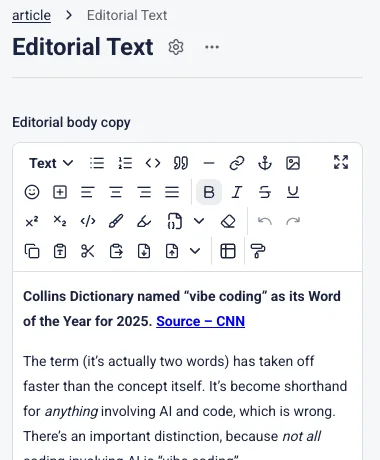
When something looks wrong
| My change isn't live | Check Build status. If it shows the publish as live, reload the page without the cache (hold Shift and click reload). If nothing appears after two minutes, the publish may not have reached the site: check the story is published, not just saved. |
| A page went live without a link or picker | The linked story isn't published. Publish it, then publish the page again. See the rules. |
| Someone changed something | Open the story and click History in the top bar. It lists the day's published versions and who published them, and lets you restore one. Older versions aren't kept, so if something was lost more than a day ago, tell the web team what it was. |
| A page shows the old wording after an hour | Email the web team with the story name. Don't republish repeatedly. |
| I need a redirect, a new block or a change to the design | Ask the web team. Contact David Alexander. |
Coming from Builder?
Builder.io is kept as a read-only backup. Don't edit it, and don't delete anything from it; changes made there never reach the site.
| In Builder | In Storyblok |
|---|---|
| Entry / page | Story |
| Model (page, blog-article…) | Content type (Page, article, case study…) |
| URL targeting rule | Folder + slug. The story's location is its URL. |
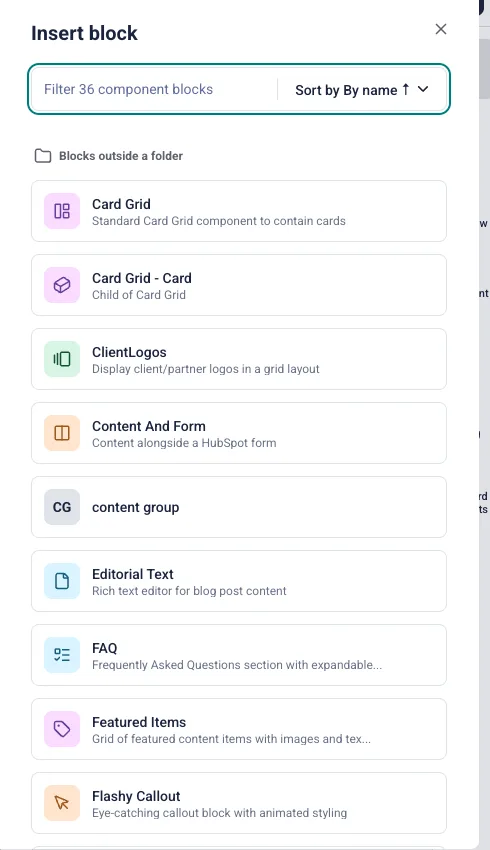
| Drag-and-drop blocks | Page sections, added with Add Block. The blocks keep their Builder names: Hero - Block, Card Grid, Media and Text, FAQ, HubSpot Form… |
| Data models (authors, categories, testimonials) | Reference stories, selected with pickers |
| Footer / Contact Us / nav models | One Site settings story |
| Showcase drag priority | Story order in the showcase folder |
| Asset library | Assets |
Each story's Migration tab records its Builder origin (Original entry ID and the rest). Leave it as it is.